

Yes, Google Maps can help you prepare for your driving test in Canada. By using its features like Street View and Satellite View, you can study test routes, identify tricky intersections, and familiarize yourself with key areas near your DriveTest Centre. This preparation reduces stress and builds confidence for test day. However, Google Maps is a tool for route familiarity, not a replacement for hands-on practice or mastering driving skills.
Key Takeaways:
- Study Test Routes: Use Google Maps to explore roads, speed zones, and intersections near your test centre.
- Practice Key Skills: Focus on parallel parking, three-point turns, merging, and highway driving as required.
- Build Route Familiarity: Preview challenging spots like school zones or complex intersections with Street View.
- GPS Restrictions on Test Day: Phones and GPS devices are not allowed during the test, so practise following verbal instructions.
For added preparation, consider downloading pre-defined GPS test routes from Drive Test Routes for $14.99 CAD. These routes replicate examiner-approved paths, allowing you to practise exactly where you'll be tested. While Google Maps is helpful, hands-on driving practice and knowledge of traffic rules remain essential to passing your test.
How Google Maps Helps With Driving Test Preparation
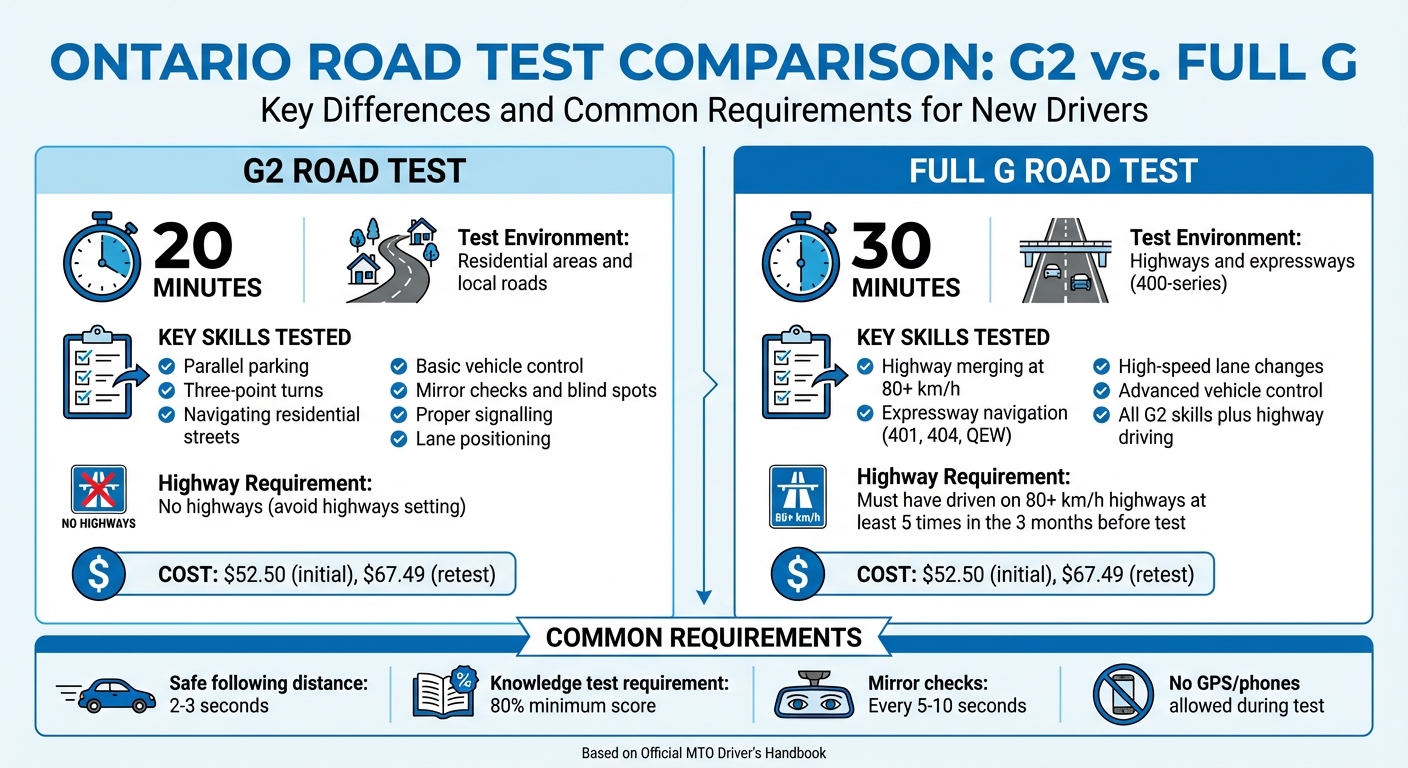
G2 vs G Road Test Requirements and Skills Comparison
What Canadian Driving Tests Measure
Driving tests in Canada focus on a range of essential skills. Examiners assess your ability to observe, such as checking mirrors regularly and paying attention to blind spots. They also evaluate how well you control the vehicle - this includes steering with both hands, braking smoothly, and managing your speed. Following traffic rules, like proper signalling and maintaining correct lane positions, is equally important.
For the Class G2 road test, which lasts about 20 minutes, you'll need to demonstrate basic skills like parallel parking, three-point turns, and navigating residential areas. The Class G road test, on the other hand, is about 30 minutes long and examines advanced abilities. This includes merging onto expressways and changing lanes at high speeds on 400-series highways. Throughout either test, maintaining a safe following distance of two to three seconds behind other vehicles is crucial.
Understanding these requirements sets the foundation for using Google Maps to prepare effectively.
Learning Test Routes With Google Maps
Google Maps can be an invaluable tool for preparing for your driving test. Start by exploring the areas around your DriveTest Centre. This allows you to pinpoint challenging intersections, identify speed zones, and understand specific lane requirements you’ll face during the exam. If you're preparing for the Class G test, you can plan routes that include 400-series highways like the 401, 404, or QEW. Remember, you must have driven on highways with speeds of at least 80 km/h at least five times in the three months leading up to your test.
Using Satellite View, you can examine lane markings and intersection layouts, while Street View helps you spot road signs, pedestrian crossings, and potential hazards like hidden driveways. You can also identify the residential and business areas that are commonly included in the test.
Practising on these routes not only sharpens your driving skills but also builds confidence, reducing pre-test nerves.
Lowering Test Anxiety Through Route Familiarity
When you’re familiar with the test route, the stress of the unknown is significantly reduced. By previewing the roads and intersections with Google Maps, test day becomes less intimidating. You'll already know what to expect, which lets you focus on demonstrating your skills, such as proper observation and vehicle control, rather than worrying about navigation.
"Best driving test app out there! Helped me become more confident driving local routes ready for my test." - Verified User, Driving Test Routes App
Being comfortable with the route allows you to practise key manoeuvres in a predictable setting. This familiarity helps you stay calm and composed when your examiner provides directions, making it easier to perform at your best on the big day.
How to Use Google Maps for Driving Test Practice
If you're looking to build confidence and get familiar with your test routes, Google Maps can be a great tool. Here's how you can use it effectively to prepare for your driving test.
Creating Practice Routes Near Test Centres
Start by entering the address of your DriveTest centre into Google Maps. This will serve as the starting and ending point for your practice routes. Use the "Add destination" feature to include up to nine stops along your route. These stops can be key locations for practising essential test skills, like navigating busy intersections, performing three-point turns on residential streets, or tackling parallel parking.
Want to customize your route further? Drag the blue line on the map to include specific streets or areas. For instance, if the driving test often includes a tricky school zone or a challenging left turn, adjust the route to go through those spots. Preparing for the G2 test? Enable the "Avoid highways" setting to keep your practice focused on local roads. If you're gearing up for the full G test, make sure to include highways so you can work on merging, lane changes, and maintaining speeds of 80 km/h or higher.
Once you've mapped out your route, dive deeper into the details using Google Maps' additional features.
Using Street View and Satellite View
Street View is a fantastic tool for previewing tricky intersections or parking areas. You can click on specific steps in your route and view photo previews of those locations. This way, you can get a sense of what to expect before you even hit the road.
Switch to Satellite View to get a bird's-eye look at parking areas near the test centre. This can help you study the layout of curbsides, the width of parking spaces, and any obstacles you might encounter while parallel parking. By familiarizing yourself with these details in advance, you'll feel more prepared when you're actually behind the wheel.
Once your route is planned and visually reviewed, set up Google Maps to ensure a safe and distraction-free practice session.
Setting Up Google Maps for Safe Practice
Before starting your drive, enable voice navigation and "Hey Google" commands. This hands-free setup ensures you can focus on the road while receiving clear, turn-by-turn directions. The app will even let you know which lanes to use, which is especially helpful for navigating complex intersections.
"Voice navigation updates you with traffic information, turn-by-turn instructions, which lanes to use, and route updates." - Google Maps Help
If you're practising in an area with spotty cellular coverage, download the map for offline use to avoid interruptions. And remember, while Google Maps may display speed limits, always rely on the posted road signs, especially in school zones or construction areas where limits can change unexpectedly.
Using Google Maps With Actual Test Routes
Practising With GPS Test Routes
Once you've got the hang of Google Maps, you can take your preparation up a notch by using pre-defined test routes from Drive Test Routes. For just $14.99, you can download GPS routes that replicate the exact examiner-approved paths used at your local DriveTest centre. These routes are created using real test data and feedback from instructors, so you're not just guessing - you’re practising on the same streets you’ll face on test day.
As of January 12, 2026, there are 321 G routes and 266 G2 routes available across 86 test centres in Ontario. By loading one of these routes into Google Maps, you’ll get turn-by-turn guidance, allowing you to focus on the essentials: checking blind spots, maintaining proper speed, and making smooth turns - without the stress of figuring out where to go next.
"Our Driving Test Routes provide driving test routes using Google Maps navigation." - Drive Test Routes
These routes do more than just guide you along the path - they help you zero in on specific challenges to ensure you’re fully prepared.
Practising Specific Test Challenges
With these detailed routes, you can hone in on sections of the test that might trip you up. Maybe there’s a tricky intersection where you need to merge efficiently, or a school zone where the speed limit drops to 30 km/h. Load the GPS route, drive through it once to get familiar with the layout, and then revisit challenging segments as many times as you need.
For those preparing for the G2 test, focus on areas that include three-point turns, parallel parking, and residential streets with unmarked lanes. If you’re gearing up for the full G test, pay close attention to highway on-ramps and off-ramps, where merging at speeds of 80 km/h or more is required. These routes give you the flexibility to practise repeatedly until you feel confident.
Affordable Test Preparation With Drive Test Routes
At only $14.99, these GPS test routes are a budget-friendly way to prepare, especially when compared to pricey driving lessons or the cost of retaking the test (a G road test runs $52.50, or $67.49 if you need to retake it). By investing in these routes, you’re setting yourself up for success and giving yourself the best shot at passing on your first attempt.
"The map provided enabled me to drive around the test routes in advance. My phone worked well with the route, and the route information was clear and accurate. And I passed!!!" - Jasprit S., Brampton
What’s more, these routes are updated regularly to reflect changes in test paths, road closures, or adjustments made by examiners. This ensures that the information you’re practising with is always current and matches what you’ll face on test day.
sbb-itb-43e39f6
Limitations of Using Google Maps for Test Prep
Google Maps as a Practice Aid, Not a Replacement
Google Maps can be helpful for getting familiar with routes, but it’s no substitute for actual driving practice. While it’s great for understanding where you’re going, it won’t teach you the hands-on skills needed to pass a road test - things like parallel parking, executing three-point turns, or properly checking blind spots. These critical skills come from studying the Official MTO Driver's Handbook and practising under the guidance of an experienced driver. Keep in mind, the knowledge test requires at least an 80% score, and all questions are based on the handbook - not on navigation apps. Google Maps might help you find your way, but it can’t prepare you for the hands-on experience that examiners are looking for. Plus, using apps during practice can introduce distractions, which is something to watch out for.
Common Risks When Using Google Maps During Practice
Relying on your phone while practising can lead to distractions that affect your driving. It’s easy to miss important details like road signs, proper following distances, or yielding the right of way when your focus is split. Overdependence on app prompts can also stop you from developing essential habits, such as regularly checking mirrors every five to 10 seconds, scanning for speed limit signs, or performing the exaggerated shoulder checks that examiners expect during the test.
"In-vehicle recording devices such as cell phone, dashboard, or action cameras, etc., are not permitted during road tests and must be disabled." - DriveTest.ca
Preparing to Drive Without GPS on Test Day
Because of these potential distractions, it’s important to practise driving without relying on GPS. On test day, navigation systems and similar devices must be turned off. Instead, the examiner will give you clear, verbal instructions with plenty of time to respond. To prepare, practise following spoken directions during your lessons. This will help you get used to the test conditions and boost your confidence in navigating without electronic help. Also, make sure to check the test centre’s policies ahead of time to avoid any surprises that could lead to disqualification.
Conclusion
Google Maps can be an excellent resource for getting familiar with test routes and reducing pre-test nerves. By studying examiner routes in advance, you can better understand road patterns and focus on showing off your driving skills during the test.
That said, no app can replace the practical experience needed to master essential manoeuvres like parallel parking or three-point turns. Building muscle memory and situational awareness through hands-on practice is absolutely critical. Combining digital tools with actual driving practice creates a balanced approach that sets you up for success.
To take your preparation a step further, consider using Drive Test Routes. For only $14.99 CAD, these GPS-guided routes integrate seamlessly with Google Maps and replicate the real DriveTest centre paths across Ontario. Many drivers find that practising these specific routes helps make the exam feel more predictable and less stressful. This method blends route familiarity with affordability and confidence-building, giving you a solid plan to ace your test on the first try.
FAQs
Can Google Maps help reduce stress on your driving test day?
Google Maps can be an incredibly helpful tool to reduce stress on your driving test day. By practising with a Drive Test Routes file synced to Google Maps, you can get a clear sense of the specific routes, turns, and speed limits you'll encounter during the test. This kind of preparation helps the test feel less intimidating and more like a familiar drive, giving you an extra boost of confidence.
On the day of your test, using Google Maps in offline mode ensures you won’t run into issues caused by poor signal or data restrictions. Combine this with a securely mounted phone holder to keep the navigation screen within your view. The app’s voice directions and early-turn notifications allow you to focus on the road while staying aware of upcoming changes, making it easier to follow traffic signs and the examiner’s cues without unnecessary distractions.
What are the drawbacks of using Google Maps to prepare for your driving test?
While Google Maps is a fantastic tool for general navigation, it does have its shortcomings when it comes to preparing for a driving test. One major limitation is its inability to load custom driving test routes. This means you can’t practise the exact streets, turns, or manoeuvres that are part of your exam. The app is built for everyday navigation, not for replicating the precise scenarios you’ll face during the test.
Another drawback is that Google Maps doesn’t always reflect current road conditions. Things like recent construction, temporary closures, or weather-related changes might not be updated in real time, making it less reliable for practice. On top of that, its safety features, such as limited interactivity while driving and minimal feedback, can make it harder to get the most out of your practice sessions.
For a more focused preparation, tools like Drive Test Routes are a better choice. These GPS-based options provide downloadable routes that match the exact test circuits used by DriveTest centres across Canada. They’re designed to help you practise with precision, building the confidence and skills you need to ace your driving test.
Why is it important to develop strong driving skills even if you use Google Maps?
Developing solid driving skills is crucial since the road test evaluates how well you can control the vehicle, react to hazards, and obey traffic laws - all without the aid of tools like GPS. During the test, you’re not allowed to use electronic navigation devices, so you’ll need to show that you can confidently manage on your own.
While apps like Google Maps are useful for planning routes or practising navigation in advance, they can’t substitute for the hands-on experience needed to tackle real-life driving challenges. Gaining this experience ensures you’re ready not only to pass the test but also to drive safely in any situation.